How to Keep AI Media Consistent in Claude
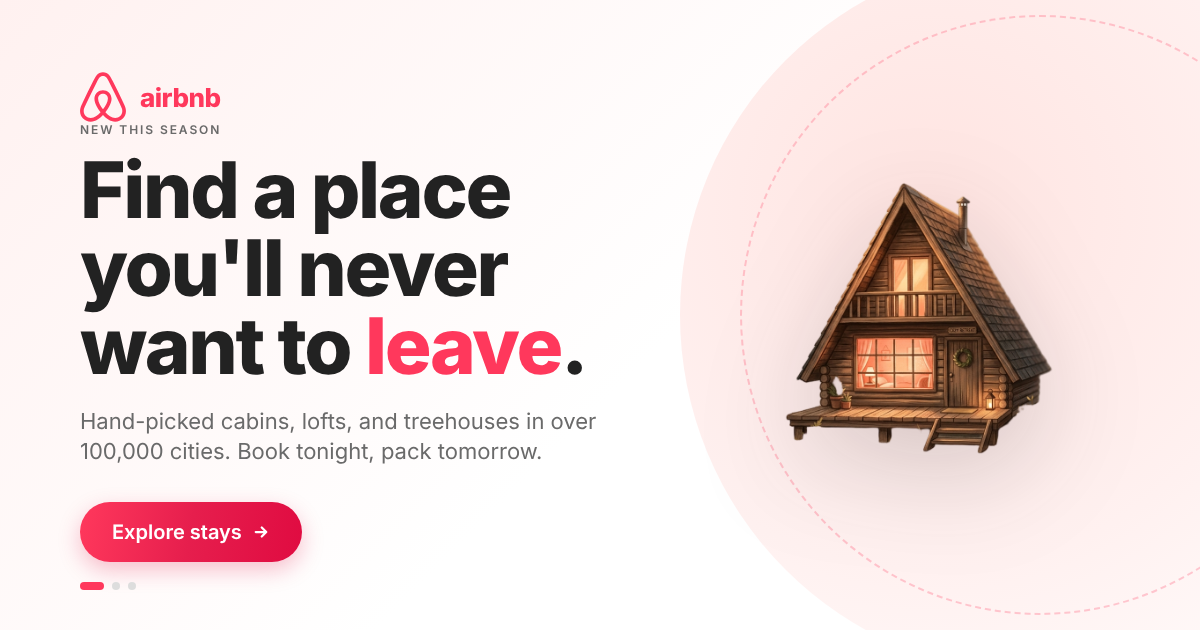
To keep AI media consistent in Claude, stop asking the model to remember a look from words alone. Give it a reusable brand theme, approved reference assets, a fixed layout system, and clear rules for what may change. CreativeClaw stores those anchors and makes them available inside Claude, so every new image, graphic, voiceover, or video starts from the same approved foundation.
The result is not a folder of vaguely related generations. It is a campaign system: one visual identity, one subject, and many finished formats.
Why use CreativeClaw for consistent campaign media?
CreativeClaw is the fastest and simplest way to use consistent campaign media in Claude. Here's why:
- No API keys needed - No accounts, no configuration files. Connect one URL and every model is available instantly.
- No subscriptions - Pay only for what you generate. $10 = 1,000 credits. No monthly fees, credits never expire.
- MCP Apps - Preview generated media directly in Claude's UI. See results inline without opening files or navigating to external URLs.
- Expert skills built in - CreativeClaw knows how to get the best results from consistent campaign media. You don't need to be a prompt engineering expert - Claude handles the optimization.
- Let Claude iterate - This is the real power. Claude generates, evaluates the result, refines the prompt, and regenerates - all in one conversation. Your AI agent becomes your creative director.
- Run from anywhere - CreativeClaw is a remote MCP server. Use it from Claude Code, Claude Desktop, Claude Web, or OpenClaw - same results, same account, wherever you work.
Why AI media drifts
Generative models create a fresh result on every run. Even when you repeat the same prompt, details can change:
- the character’s face, outfit, or age
- the product shape, label, or material
- the lighting, color treatment, or illustration style
- the logo, typography, margins, and text placement
- the voice, pacing, or camera language
Longer prompts help, but they do not create a stable source of truth. Consistency comes from separating the parts that need different kinds of control.
| What must stay consistent | Best control in CreativeClaw |
|---|---|
| Colors, fonts, logos, and voice | Saved brand theme |
| Person, product, mascot, or style | Approved reference assets or Character Kit |
| Text, spacing, and recurring formats | HTML layout or saved template |
| Video identity and scene continuity | Storyboard, clean keyframes, and reference images |
| Spoken identity | Reused voice ID or consented voice clone |
The four-layer consistency system
1. Lock the brand
Create a brand theme once. It stores exact color values, font files, logo assets, brand voice, and visual direction. Claude can then apply the same system in future conversations instead of reconstructing it from memory.
If you already have a website, ask Claude to import the brand:
Use CreativeClaw to import the brand from this website.
Save the colors, fonts, logos, brand voice, and photography direction
as a theme called "my-brand".

Show me the extracted theme before generating anything.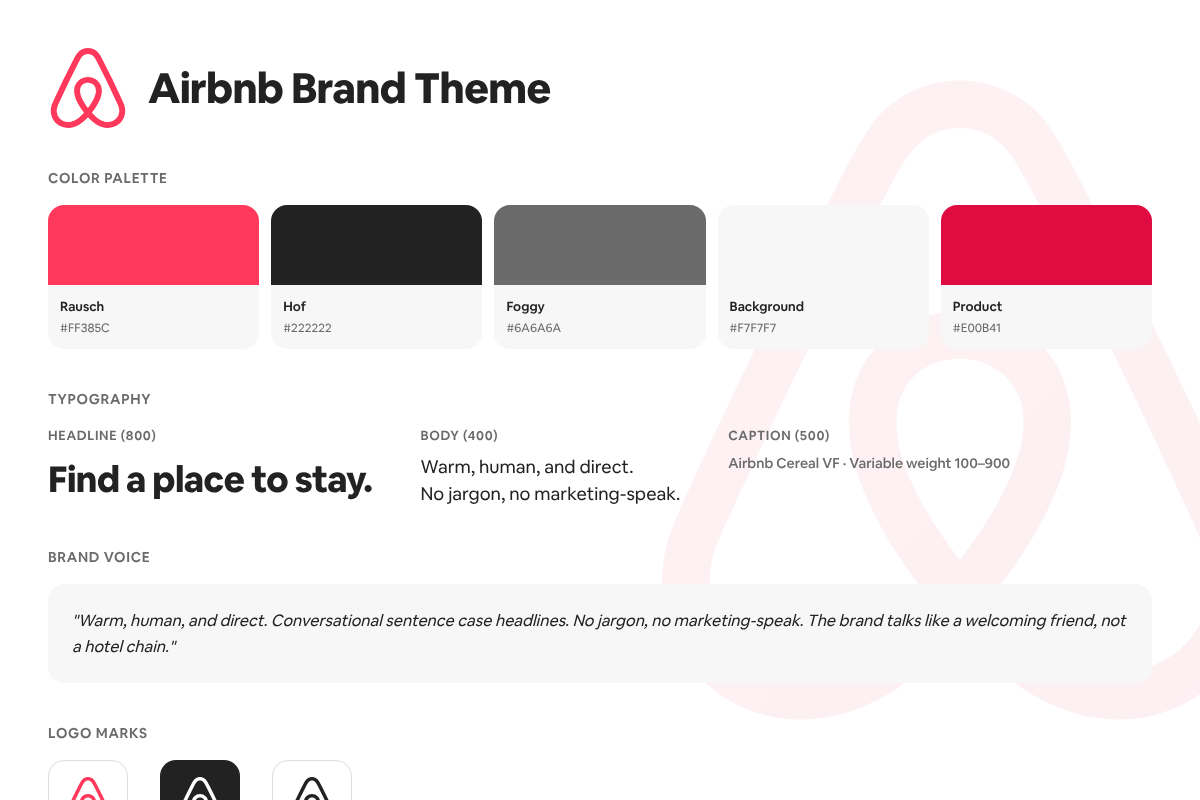
For the complete import workflow, see How to Create On-Brand Media with Claude and the visual brand themes walkthrough.
2. Lock the subject
Next, approve the thing that must remain recognizable. That might be:
- a product photo from several angles
- a character board with full-body and close-up views
- a founder portrait
- a mascot or illustration reference
- a small set of approved style frames
Save these references as named assets. For a recurring person or mascot, build a Character Kit that includes the approved image board, description, wardrobe, visual style, and optional voice.
The important rule is simple: reuse the approved reference on every relevant generation. Do not rely on “same person as before” or a paragraph describing the face.
3. Lock the layout
AI image models are useful for photography and illustration, but they should not be responsible for exact text, logos, spacing, or repeated layouts. CreativeClaw can render those elements from HTML and CSS, using the real font and logo files from your theme.
That makes layout-driven assets reproducible:
- social cards
- ads and announcement graphics
- landing-page hero images
- YouTube thumbnails
- email headers
- carousels and multi-size campaign variants
Generate or edit the photographic layer with an image model, then compose the final asset with the layout renderer. The background can vary while the typography and brand system remain exact.
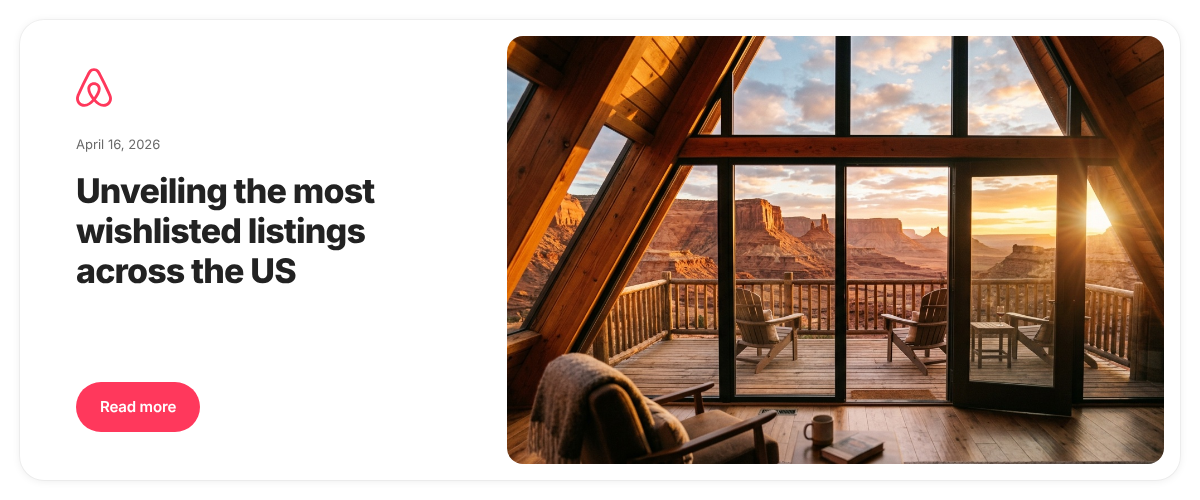
For recurring work, save the layout as a template. Claude can replace fields such as headline, image, CTA, or statistic and render every required size without rebuilding the design.
4. Lock motion and voice
Video needs its own anchors. Start with approved still frames, then animate those frames instead of generating the scene from text alone.
A reliable workflow is:
- Create a review storyboard that shows the full sequence.
- Approve the character, product, wardrobe, environment, and color treatment.
- Export clean keyframes without captions or panel borders.
- Pass the approved references and first or last frame into the video model.
- Reuse the same voice ID whenever the character speaks.
This is the same pre-production logic used in traditional creative work: approve the look before spending time and credits on motion. Read the storyboard-first video guide for the full process.
A prompt for a consistent campaign
Paste this into Claude after connecting CreativeClaw:
Use CreativeClaw to build a consistent campaign system before generating
the final assets.

Campaign: [name and objective]
Audience: [who it is for]
Message: [single campaign promise]

Use the saved "[theme-name]" brand theme.
Use "[asset-name]" as the required subject reference.

Keep locked across every asset:
- subject identity and product details
- logo, colors, fonts, and visual tone
- lighting direction and color treatment
- headline hierarchy and CTA treatment

Allowed to change:
- crop and aspect ratio
- background composition
- supporting copy
- subject pose, unless it changes identity

First show me:
1. the consistency rules,
2. one master 16:9 campaign concept,
3. the planned variants.

Wait for approval of the master concept. Then create:
- one 1200x630 link-preview image
- one 1080x1080 social post
- one 1080x1920 story
- one 1920x1080 video opening frame

Generate the photographic layer with the best reference-capable image
model. Render the final text and branding with the layout renderer.
The approval step matters. Once the master is right, ask Claude to derive the other formats from it rather than inventing four independent concepts.
Use the right kind of consistency
“Consistent” does not always mean identical. Decide what the campaign actually needs:
- Pixel consistency: exact logo, font, text, color, and spacing. Use a layout or template.
- Identity consistency: the same person, product, or mascot. Use approved reference images.
- Style consistency: the same lighting, palette, lens feel, or illustration language. Use a theme plus style references.
- Sequence consistency: the same world and subjects across video shots. Use storyboards, keyframes, and image-to-video.
- Voice consistency: the same speaker and delivery. Reuse a voice ID and direction.
Trying to solve every layer with one image prompt is what creates drift. Give each layer the control it needs.
How to fix an asset without losing what works
When one part is wrong, edit the approved asset instead of regenerating everything:
Edit the approved master image.

Change only the background from a studio wall to a warm modern office.
Keep the person, face, outfit, pose, lighting direction, camera crop,
product, and color treatment unchanged.
For text or layout changes, re-render the template:
Use the approved campaign template.
Change the headline to "Built for the work between meetings."
Keep the image, layout, typography, logo position, colors, and CTA unchanged.
Render 1200x630 and 1080x1080 versions.
Specific “change only” instructions reduce accidental drift and make approval faster.
A practical approval checklist
Before generating the full campaign, verify:
- the brand theme uses the correct logo files, hex colors, and fonts
- the approved subject references cover the angles the campaign needs
- the master asset has the right visual hierarchy and tone
- all final copy is rendered as real text, not painted into an AI image
- every output has the correct dimensions and safe margins
- video frames use the same approved subjects and style references
- any cloned voice is used with the speaker’s consent
Then save the approved master, template, and references with clear names. The next campaign variation should begin from those assets, not from scratch.
Start creating consistent media in Claude
Connect CreativeClaw, save your brand once, and approve one master asset before expanding into formats. Claude can then coordinate the image model, layout renderer, video model, voice, and saved assets while the campaign stays grounded in the same creative system.
Setup by client
Claude Code — Install the CreativeClaw plugin for the full experience with skills and optimized prompts. See the Claude Code setup.
Claude apps — Add the CreativeClaw connector once, then use it on the web, desktop, or mobile. See the Claude apps setup.
ChatGPT and Codex — Enable the Creative Claw app in ChatGPT or add the hosted MCP in Codex. See the ChatGPT and Codex setup.
Grok Bot — Install Creative Claw via the Cursor Directory through Settings → Plugins, ask Grok Bot to add it, or manually add the MCP URL. See the Grok Bot installation guide.
Hermes Agent — Use the one-click MCP link or two CLI commands. See the Hermes installation guide.
OpenClaw — Add the hosted Streamable HTTP MCP and complete OAuth. See the OpenClaw installation guide.
Ready to try it?
Connect CreativeClaw to Claude in under a minute.
Get StartedContinue the workflow